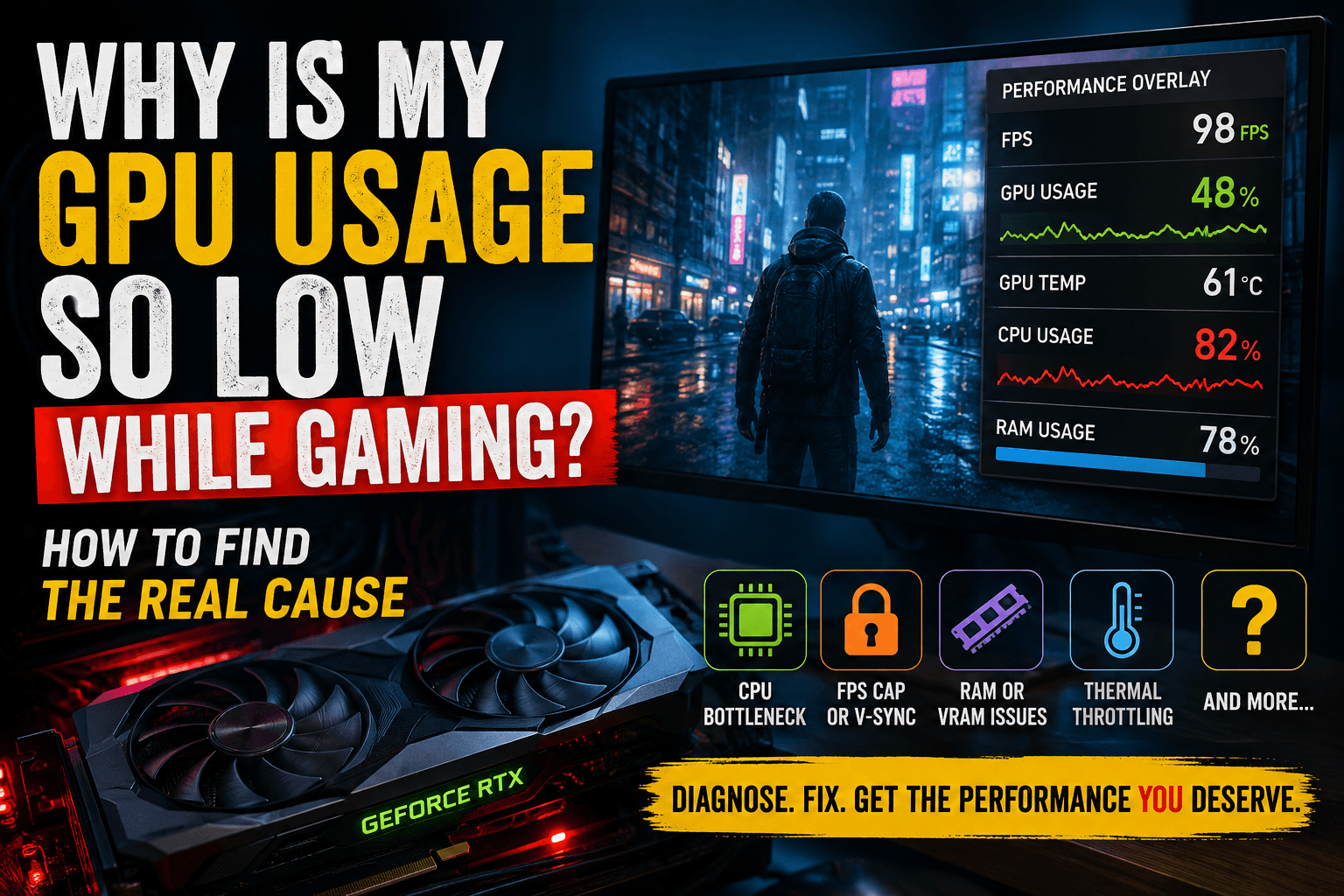
Why Is My GPU Usage So Low While Gaming? How to Find the Real Cause

Low GPU Usage Doesn't Automatically Mean Something Is Wrong
A GPU at 60% utilization isn't necessarily underperforming.
Imagine you're playing a competitive game at 1080p with a powerful graphics card. The GPU might be capable of rendering 250 FPS, but your CPU or game engine may only be able to deliver 160 FPS.
The GPU doesn't need to run at 99% because there's nothing useful for it to do while it waits for the next frame's instructions.
Intel describes this basic relationship clearly: when the CPU can't supply rendering instructions quickly enough, the GPU can remain idle while waiting for more work.
That's why the better question isn't:
"Why isn't my GPU at 100%?"
It's:
"What's preventing my GPU from doing more work?"
That distinction makes troubleshooting much easier.
The Most Common Reasons for Low GPU Usage
Cause | GPU Usage | FPS | What Usually Happens |
|---|---|---|---|
CPU bottleneck | Low to medium | Limited | One or more CPU threads are overloaded |
FPS cap | Low | Fixed near cap | GPU doesn't need to render faster |
V-Sync | Low | Matches refresh rate | Frames are synchronized to display |
Low graphics settings | Low | Often high | GPU workload is simply small |
Game engine limitation | Low | Variable | Game can't efficiently use available hardware |
RAM limitation | Low/medium | Stutters or drops | CPU/GPU may wait for system memory |
Thermal throttling | Can fluctuate | Drops over time | CPU or GPU clocks fall under heat |
Wrong GPU selected | Very low | Poor | Game may use integrated graphics |
Driver/software issue | Abnormal | Poor | Hardware isn't being utilized correctly |
The important part is that several of these situations are completely normal.
1. Your CPU May Be Bottlenecking the GPU
This is probably the first thing I'd investigate when GPU usage is low and FPS is disappointing.
A CPU bottleneck doesn't always mean your entire CPU is at 100%.
That's one of the biggest misconceptions in PC troubleshooting.
A game may heavily depend on one or two CPU threads while the remaining cores sit relatively quiet. Windows can therefore show something like 45% total CPU usage while one important thread is effectively maxed out.
Meanwhile, your GPU waits.
Intel's own troubleshooting guidance identifies the combination of high CPU load and low GPU load as a classic CPU-bound scenario.
A simple test
Try increasing your graphics settings or resolution.
If your FPS barely changes while GPU usage rises somewhat, you may have been CPU-limited.
For example:
1080p: 125 FPS, GPU 55%
1440p: 120 FPS, GPU 75%
4K: 105 FPS, GPU 95%
That's a strong clue that the CPU or game engine was limiting performance at the lower resolution.
This is also why upgrading a GPU doesn't automatically fix every low-FPS problem. If the CPU is already the limiting component, a faster graphics card can spend even more time waiting.
If you're dealing with this specifically, see our guide on how to check if your CPU is bottlenecking your GPU.
2. You May Have an FPS Limit Enabled
Before blaming your hardware, check the boring settings.
They cause a surprising number of "low GPU usage" mysteries.
Look for:
In-game FPS limit
NVIDIA Control Panel frame-rate limit
AMD Radeon frame-rate limit
V-Sync
Dynamic resolution
Driver-level power or performance settings
Game-specific performance profiles
Suppose your monitor is 144Hz and your game is locked to 144 FPS.
Once the GPU can comfortably produce those 144 frames, there is no reason for it to run flat-out.
The same applies to a 60 FPS cap on a 60Hz display.
V-Sync can synchronize rendered frames with the display's refresh rate, effectively limiting the frame rate in situations where the GPU could otherwise produce more frames.
The giveaway
If you see:
144 FPS + 50% GPU usage
and the number stays almost perfectly locked at 144, check the frame limiter before touching your hardware.
That's not a GPU problem.
Your GPU is simply finishing the work early and waiting.
3. Your Graphics Settings May Be Too Easy for the GPU
This one sounds strange, but lowering graphics settings can actually make GPU utilization fall.
If you run a modern GPU at 1080p with low settings, you're asking it to render a relatively easy workload.
The GPU finishes those frames quickly.
The CPU or game engine then becomes the limiting factor.
This is especially common in esports games where players deliberately use low settings to maximize FPS.
So don't compare your GPU usage with somebody else's and assume your number is wrong.
A high-end GPU running a competitive game at low settings can legitimately show much lower utilization than the same GPU running a visually demanding single-player title at 4K.
Intel also notes that scene characteristics and graphics settings can shift whether a game is CPU- or GPU-bound.
4. Check Whether the Game Is Using the Correct GPU
This is especially important on laptops and systems with integrated graphics.
Windows can manage which GPU an application uses. Windows 11's Graphics settings allow you to select a High performance GPU for individual applications on systems with multiple graphics processors.
Go to:
Settings → System → Display → Graphics
Find your game and check its graphics preference.
If the game is accidentally running on integrated graphics, you'll usually see much worse performance rather than simply low utilization.
Still, it's an easy thing to eliminate from the list.
5. RAM Can Be the Hidden Problem
RAM doesn't usually behave like a simple "GPU bottleneck."
Instead, insufficient memory, poor memory configuration, or excessive background usage can create stalls that indirectly prevent the GPU from staying busy.
For example, imagine a game needs more memory than your system comfortably has while you've also got a browser, Discord, recording software, and several other applications running.
The CPU may spend more time dealing with memory pressure and asset loading.
The GPU can then sit around waiting for the next batch of work.
That's why you should monitor:
System RAM usage
RAM speed
Memory configuration
VRAM usage
Background applications
Don't assume that because the GPU has plenty of VRAM available, system RAM isn't relevant.
They solve different problems.
6. Thermal Throttling Can Make GPU Usage Look Strange
Heat-related performance problems are easy to miss because the problem may not appear immediately.
Your PC starts a game normally.
After 20 or 30 minutes:
FPS falls
CPU clocks drop
GPU clocks fluctuate
GPU utilization becomes inconsistent
Fans become noticeably louder
At that point, don't just watch utilization.
Watch clock speeds and temperatures.
A GPU running at 95% utilization at a reduced clock speed isn't behaving the same way as a GPU running at 95% utilization at its normal boost clock.
The same principle applies to the CPU.
Intel recommends checking CPU temperatures and monitoring hardware behavior when investigating gaming performance problems, since overheating can cause throttling and reduced performance.
7. The Game Engine May Simply Be the Limitation
Some games don't scale perfectly across modern CPUs and GPUs.
You can have:
A powerful processor
A powerful GPU
Plenty of RAM
Fast storage
and still see relatively low GPU usage.
Open-world games, simulation-heavy games, strategy titles, and games with lots of AI or physics calculations can become CPU-limited in specific scenes.
And the limitation can change from one area of the game to another.
You might see 95% GPU usage while exploring an empty area, then drop to 60% when entering a crowded city.
That doesn't necessarily mean anything broke.
The workload changed.
Intel's GPU/CPU optimization guidance specifically notes that games can alternate between CPU-bound and GPU-bound scenes.
How to Find the Real Cause
Instead of changing ten settings at once, use a controlled test.
Step 1: Record your baseline
Play the same section of the game for a few minutes.
Record:
FPS
1% lows
GPU utilization
GPU clock
GPU temperature
CPU utilization
CPU temperature
RAM usage
VRAM usage
AMD's Radeon software, for example, can display GPU utilization, GPU clocks, temperatures, power, CPU utilization, VRAM and system RAM directly through its performance metrics overlay.
NVIDIA users can use the company's performance overlays or third-party monitoring software.
Step 2: Remove artificial limits
Temporarily test with:
V-Sync off
FPS limit disabled
Dynamic resolution disabled
Don't permanently change everything just for the sake of a higher number. You're testing the system, not necessarily creating your ideal gaming settings.
Step 3: Increase GPU workload
Raise resolution or graphics quality.
If FPS stays almost the same but GPU usage increases significantly, that's a strong indication that you were CPU-limited or otherwise not GPU-bound.
Step 4: Watch individual CPU cores
This is where many troubleshooting attempts go wrong.
Don't just look at total CPU usage.
Check individual core/thread activity.
A game can be limited by one heavily loaded thread while total CPU usage appears surprisingly modest.
Step 5: Compare clocks with temperatures
Low utilization combined with normal clocks and temperatures isn't automatically concerning.
Low utilization combined with unexpectedly low clocks, rising temperatures, and falling FPS deserves much more investigation.
What Your GPU Usage Is Actually Telling You
Here's a useful way to interpret the numbers:
What You See | Likely Explanation |
95-99% GPU + low FPS | GPU is probably the limitation |
50-70% GPU + one CPU thread maxed | Likely CPU limitation |
50% GPU + exactly 60/120/144 FPS | Check FPS cap or V-Sync |
Low GPU + very high RAM usage | Investigate memory pressure |
GPU usage falls after 30 minutes | Check temperatures and clocks |
Low GPU + very low FPS on laptop | Check which GPU the game is using |
GPU usage changes dramatically between scenes | Game workload may be shifting |
The goal isn't to make the GPU percentage as high as possible.
The goal is to identify the component preventing the next frame from being completed faster.
A Practical Example
Imagine you have a powerful graphics card paired with a mid-range CPU.
You're playing at 1080p and getting 110 FPS.
GPU usage sits around 55%.
You increase the resolution to 1440p.
Now you're getting 105 FPS and GPU usage rises to 80%.
At 4K, you're getting 75 FPS and GPU usage reaches 97%.
That pattern tells you something useful.
At 1080p, the GPU had plenty of unused capacity because something else was limiting frame delivery.
As the resolution increased, the GPU became responsible for more of the workload.
This is much more informative than simply saying, "My GPU is only at 55%."
When Low GPU Usage Is Actually a Problem
Low GPU usage deserves attention when it's accompanied by unexpectedly poor performance.
For example:
You expected 120 FPS but get 45 FPS.
GPU usage stays around 40%.
There is no FPS cap.
V-Sync is disabled.
CPU threads are heavily loaded.
Temperatures are normal.
The correct GPU is selected.
That's when you start investigating CPU bottlenecks, drivers, RAM, game-specific problems, background processes, or hardware configuration.
Intel recommends checking drivers, background workloads, temperatures, game updates and hardware compatibility as part of this type of troubleshooting.
On the other hand, 60% GPU usage at 200 FPS in a lightweight game is nothing to worry about.
The Bottom Line
If you're asking why is my GPU usage so low while gaming, don't start by assuming your graphics card is defective.
Low GPU utilization is often a symptom rather than the problem itself.
First check for an FPS cap or V-Sync. Then look at individual CPU threads, GPU clocks, temperatures, RAM usage and the actual frame rate. Finally, increase resolution or graphics settings and see how the system responds.
That last test is particularly useful because it tells you whether you're actually GPU-limited.
Your GPU doesn't need to be at 100% for your PC to be performing correctly.
What matters is whether the hardware is delivering the FPS your CPU, GPU, game settings and display should reasonably be capable of.
If you're troubleshooting your own system, start with our CPU bottleneck guide, then monitor the same scene while changing one variable at a time.
Have you found a surprisingly low GPU usage problem on your own PC? Share your CPU, GPU, resolution, FPS and GPU usage in the comments or with another FixPlay reader. The combination of those numbers is far more useful than GPU utilization alone.
FAQ: Why Is My GPU Usage So Low While Gaming
Is 50% GPU usage normal while gaming?
Yes. It can be completely normal if your FPS is high or another component is limiting frame production. Check CPU threads, FPS caps and V-Sync before assuming there's a problem.
Why is my GPU usage low but CPU usage is high?
This commonly indicates a CPU-bound workload. The CPU may be unable to prepare frames quickly enough for the GPU, leaving the graphics card waiting for more work.
Should GPU usage always be 99% while gaming?
No. Near-100% GPU usage is common when the GPU is the performance limit, but lower utilization can be perfectly normal when the CPU, frame limiter, V-Sync or game engine is limiting performance.
Can low GPU usage cause low FPS?
Yes, but low GPU usage itself isn't the cause. It can indicate that something else is preventing the GPU from rendering more frames, such as a CPU bottleneck, FPS cap, memory limitation or game-engine restriction.
How do I test whether my CPU is bottlenecking my GPU?
Monitor individual CPU threads and GPU usage, then increase resolution or graphics settings. If FPS changes very little while GPU utilization rises substantially, you may have been CPU-limited at the original settings.

Written by
Kashif
Founder & Lead Editor, FixPlay
Kashif is the founder and lead editor at FixPlay, covering PC hardware, console gaming, and breaking industry news since 2021. He builds and benchmarks his own test rigs before writing any hardware guide, and has covered major releases including GTA 6, Elden Ring, and Call of Duty season updates. His GPU and settings guides are based on hands-on testing, not spec-sheet guesses.
View all posts by Kashif


0 Comments
No comments yet - be the first to share your thoughts.