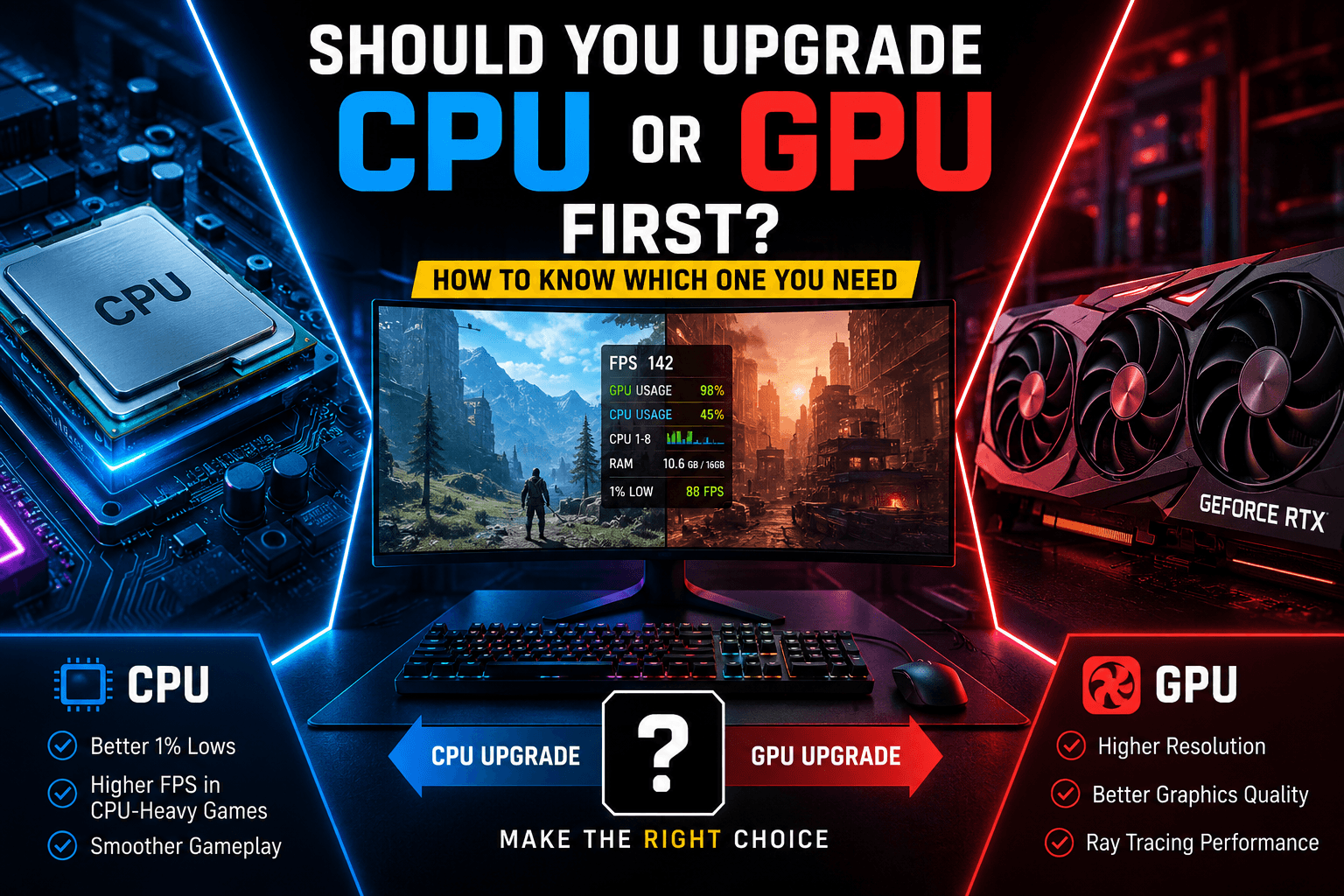
Should You Upgrade Your CPU or GPU First? How to Know Which One You Need

CPU vs. GPU: What Actually Limits Your FPS?
The simplest way to think about it is this:
CPU: Determines how quickly the game can prepare and manage the workload.
GPU: Determines how quickly your graphics card can render the image.
RAM: Feeds data to the CPU and game engine.
Storage: Mainly affects loading and asset streaming rather than average FPS.
Monitor: Determines how much of your generated performance you can actually see.
When your GPU is doing most of the work and sitting around 95-100% utilization, you're usually GPU-limited.
When GPU utilization is relatively low while one or more CPU threads are struggling to keep the game moving, you're more likely CPU-limited.
But there's a catch: overall CPU usage can be misleading.
A game can show only 40-50% total CPU utilization while one important CPU thread is nearly maxed out. That's why simply opening Task Manager and looking at the overall CPU percentage isn't enough.
If you want a deeper explanation, our guide on how to check whether your CPU is bottlenecking your GPU walks through the testing process in more detail.
The Fastest Way to Decide: Look at Your GPU Usage
Before buying anything, spend 15 minutes monitoring your system while playing the games that actually give you trouble.
Use a tool such as MSI Afterburner with RivaTuner Statistics Server, or another hardware monitoring application, and watch:
GPU utilization
GPU temperature
GPU power usage
CPU utilization by individual core/thread
CPU temperature
CPU clock speed
Average FPS
1% low FPS
VRAM usage
RAM usage
Then look for a pattern rather than one isolated number.
Signs You Should Upgrade Your GPU
A GPU upgrade is usually the better choice when:
GPU utilization stays around 95-100% during demanding scenes.
Lowering graphics settings significantly increases FPS.
You aren't reaching your monitor's target refresh rate.
VRAM is consistently near its limit.
You want higher resolution or better ray tracing.
You play visually demanding single-player games.
Your CPU has plenty of headroom for the target frame rate.
This is the straightforward situation.
For example, suppose you're playing at 1440p Ultra and your GPU sits at 98%, while your CPU isn't struggling. Dropping from Ultra to Medium suddenly increases FPS from 55 to 82.
That's a strong GPU-limited signal.
Buying a faster CPU first probably won't solve the problem.
Current 2026 GPU testing also reinforces why resolution matters. Tom's Hardware's 2026 GPU hierarchy tests cards at 1080p, 1440p, and 4K and notes that the GPU typically plays the biggest role in determining gaming performance, although a sufficiently weak or outdated CPU can prevent a powerful GPU from reaching its potential.
Signs You Should Upgrade Your CPU
A CPU upgrade becomes more attractive when:
GPU utilization regularly drops well below 90% during FPS-limited situations.
One or more CPU cores/threads are heavily loaded.
Your average FPS is acceptable, but 1% lows are poor.
You experience stuttering during crowded scenes.
Your FPS barely changes when lowering graphics settings.
You're targeting very high refresh rates such as 144Hz, 165Hz, 240Hz or higher.
You play CPU-heavy games such as simulation, strategy, MMO or large-scale multiplayer titles.
This is where many upgrade decisions go wrong.
Imagine you're playing at 1080p with an RTX 4070-class GPU. Your graphics card is sitting around 65-75% utilization while FPS refuses to move beyond 90-100.
You lower every graphics setting.
FPS barely changes.
That doesn't mean your GPU is weak.
It means something upstream is preventing it from doing more work.
That "something" could be the CPU.
NVIDIA's own developer documentation explains that frame-rate caps, stuttering and other performance problems can be traced to CPU bottlenecks, because the CPU has to efficiently prepare and delegate work to the GPU.
Your Resolution Changes the Answer
One of the biggest mistakes is asking:
"Is this CPU or GPU good enough?"
The better question is:
"Good enough for what resolution, frame rate and game?"
1080p: CPU Matters More
At 1080p, especially with competitive settings, the GPU has fewer pixels to render.
That can move the bottleneck toward the CPU.
This is particularly important if you're chasing 144 FPS, 240 FPS or even higher.
A faster GPU won't necessarily help much if the CPU can't prepare frames quickly enough.
That's why an expensive graphics card paired with an older CPU can be an awkward combination for high-refresh-rate 1080p gaming.
1440p: The Middle Ground
1440p often provides a better balance.
The GPU has considerably more work to do than at 1080p, but a powerful graphics card can still expose CPU limitations if you're targeting very high FPS.
This makes 1440p the resolution where your specific games and hardware combination matter most.
4K: GPU Usually Wins
At 4K, the GPU has to process a huge number of pixels.
As a result, graphics performance tends to dominate.
Tom's Hardware's CPU/GPU testing found that CPU differences became much smaller at 4K Ultra, with an older Core i7-8700K trailing newer CPUs by only around 8-9% in their test setup.
That doesn't mean CPU performance is irrelevant at 4K.
It means spending hundreds of dollars on a CPU upgrade may produce much less gaming performance than putting that money toward a stronger GPU.
Use This Simple Upgrade Table
Your Situation | Upgrade First |
|---|---|
1080p, low FPS, GPU near 100% | GPU |
1080p, high FPS target, GPU underutilized | CPU |
1440p Ultra, GPU near 100% | GPU |
1440p, poor 1% lows and CPU-heavy games | CPU |
4K gaming, GPU near 100% | GPU |
4K with strong GPU but severe CPU limitation | CPU |
New GPU but old 4-6+ year CPU | Test before upgrading GPU |
Competitive 240Hz gaming | Usually CPU first if GPU has headroom |
Ray tracing performance is poor | Usually GPU |
GPU VRAM is constantly full | GPU |
Stutters in CPU-heavy games | CPU |
The word usually matters here.
There are always games that behave differently.
Don't Use CPU Percentage Alone
This deserves its own section because it's one of the most common troubleshooting mistakes.
Let's say Task Manager reports:
CPU: 52%
That sounds like there's plenty of CPU performance available.
But imagine one important thread is running close to its maximum while the remaining cores are lightly loaded.
The game can still be CPU-limited.
Modern game engines distribute workloads across multiple threads, but they don't necessarily use every core equally. NVIDIA has even documented cases where game performance can change depending on how workloads are distributed across CPU threads.
So instead of asking:
"Is my CPU at 100%?"
Ask:
"Is the CPU preventing the GPU from being fully utilized at my target FPS?"
That's a much more useful question.
Here's a Better Test Before You Spend Money
Run the same game in the same location and perform two tests.
Test 1: Lower the Graphics Settings
Take your normal settings and dramatically lower them.
For example:
1440p Ultra → 1440p Low
If FPS jumps from 55 to 90, your GPU was probably doing most of the heavy lifting.
If FPS only increases from 55 to 62, you may be CPU-limited.
This isn't a perfect scientific test, but it's an extremely useful diagnostic.
Test 2: Lower the Resolution
Try:
1440p → 1080p
If FPS barely changes, that's another clue that the CPU is limiting performance.
If FPS increases substantially, the GPU is probably your main limitation.
NVIDIA's graphics-performance documentation demonstrates the same basic principle: lowering rendering resolution can substantially reduce GPU workload, while CPU-limited scenarios don't necessarily scale the same way.
Don't Ignore 1% Low FPS
Average FPS can hide the problem you're actually trying to fix.
Imagine two systems:
System | Average FPS | 1% Low |
PC A | 100 FPS | 92 FPS |
PC B | 110 FPS | 55 FPS |
PC B wins the benchmark screenshot.
PC A may feel much smoother.
If your game feels "laggy" despite a decent average FPS, investigate 1% lows and frame-time consistency before buying a faster GPU.
This is especially relevant for CPU upgrades because a newer processor can improve consistency even when the average FPS increase isn't spectacular.
A Real-World Upgrade Scenario
Consider a typical older gaming PC:
CPU: Core i7-8700K
GPU: RTX 3080
Resolution: 1080p
Target: 144Hz
At first glance, replacing the RTX 3080 with a much faster GPU sounds like the obvious upgrade.
But the CPU may become the limiting factor at this resolution and frame-rate target.
Tom's Hardware's controlled testing illustrates exactly why this happens. With an RTX 4080, the older 8700K lost up to 40% of potential performance at 1080p compared with newer CPUs. The gap narrowed substantially at higher resolutions.
Now change the scenario:
Same CPU and GPU
Resolution: 4K
Target: 60-100 FPS
Suddenly the GPU is doing far more work.
In this case, spending your upgrade budget on the CPU could produce a surprisingly small gaming improvement.
That's the key lesson: the same PC can need a completely different upgrade depending on how you use it.
What If You Want a New GPU but Have an Old CPU?
Don't automatically cancel the GPU upgrade.
A CPU bottleneck isn't an on/off switch.
Your old CPU might limit performance in some games while allowing a new GPU to deliver a huge improvement in others.
It's perfectly reasonable to upgrade the GPU first if:
You play mostly GPU-heavy games.
You're moving to 1440p or 4K.
Your current GPU is clearly maxed out.
You're willing to upgrade the CPU later.
Your motherboard/platform can support a worthwhile future CPU upgrade.
The important thing is to avoid spending flagship-GPU money while expecting flagship-GPU performance in every CPU-heavy game.
When a CPU Upgrade Is More Than Just an FPS Upgrade
A CPU upgrade can improve more than the number in the FPS counter.
You may notice:
Better 1% lows
Less stuttering
Faster simulation
Better performance in large multiplayer matches
Faster shader compilation
Improved background multitasking
Better performance while streaming or recording
This is one reason benchmark averages don't always tell the complete story.
If your current PC delivers 100 FPS but constantly feels uneven, a CPU upgrade may provide a more noticeable improvement than a GPU upgrade that pushes your average from 100 to 120 FPS.
Don't Forget RAM and Platform Costs
There's another problem with the "CPU or GPU?" question.
A CPU upgrade isn't always just a CPU upgrade.
Depending on your platform, you may also need:
A new motherboard
New RAM
A better CPU cooler
Potentially a stronger power supply
That's why you should calculate the total upgrade cost, not just the CPU price.
For example, a $300 CPU that requires another $250 in platform upgrades is a very different purchase from a $300 GPU that drops straight into your existing system.
Before upgrading RAM, you can also check whether your current memory is actually running at its rated speed using our guide on how to check if RAM is running at full speed.
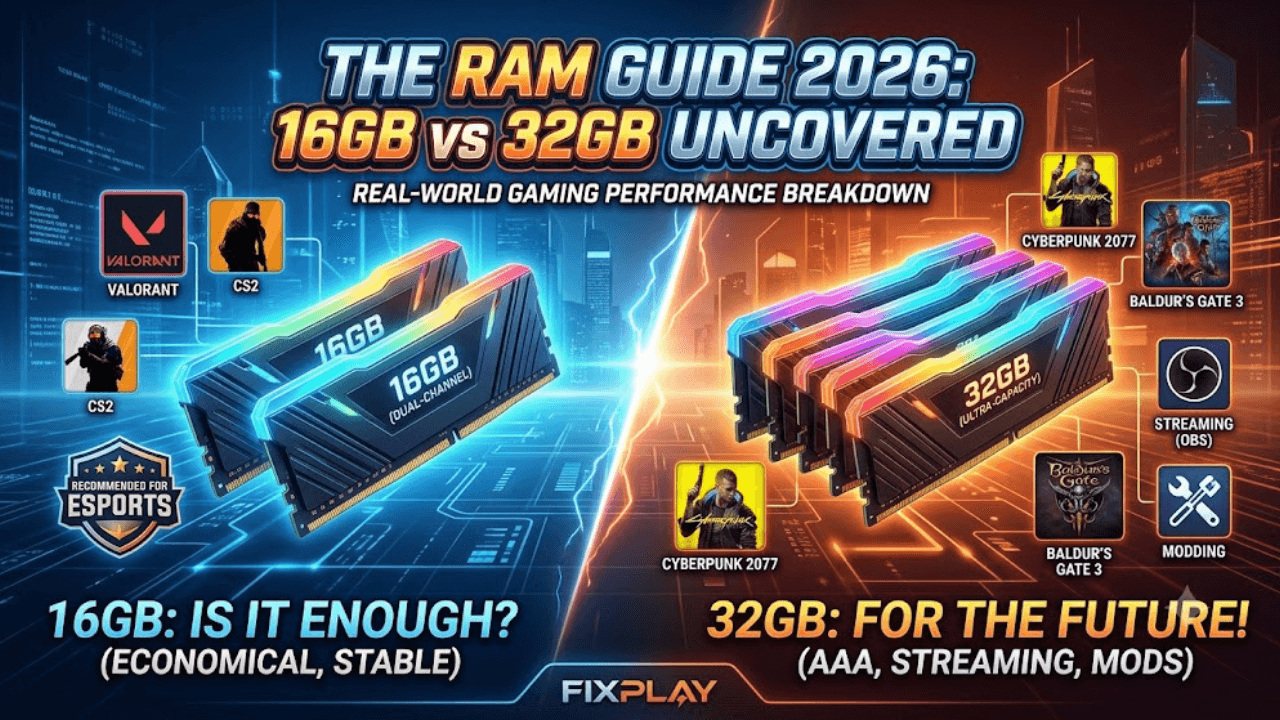
And if your system has limited memory, our guide on how much RAM you need for gaming can help determine whether RAM should be addressed before either major component.
One More Thing: Your Power Supply
A GPU upgrade can dramatically change power requirements.
If you're moving from a midrange card to a high-end GPU, check your PSU before ordering the new hardware.
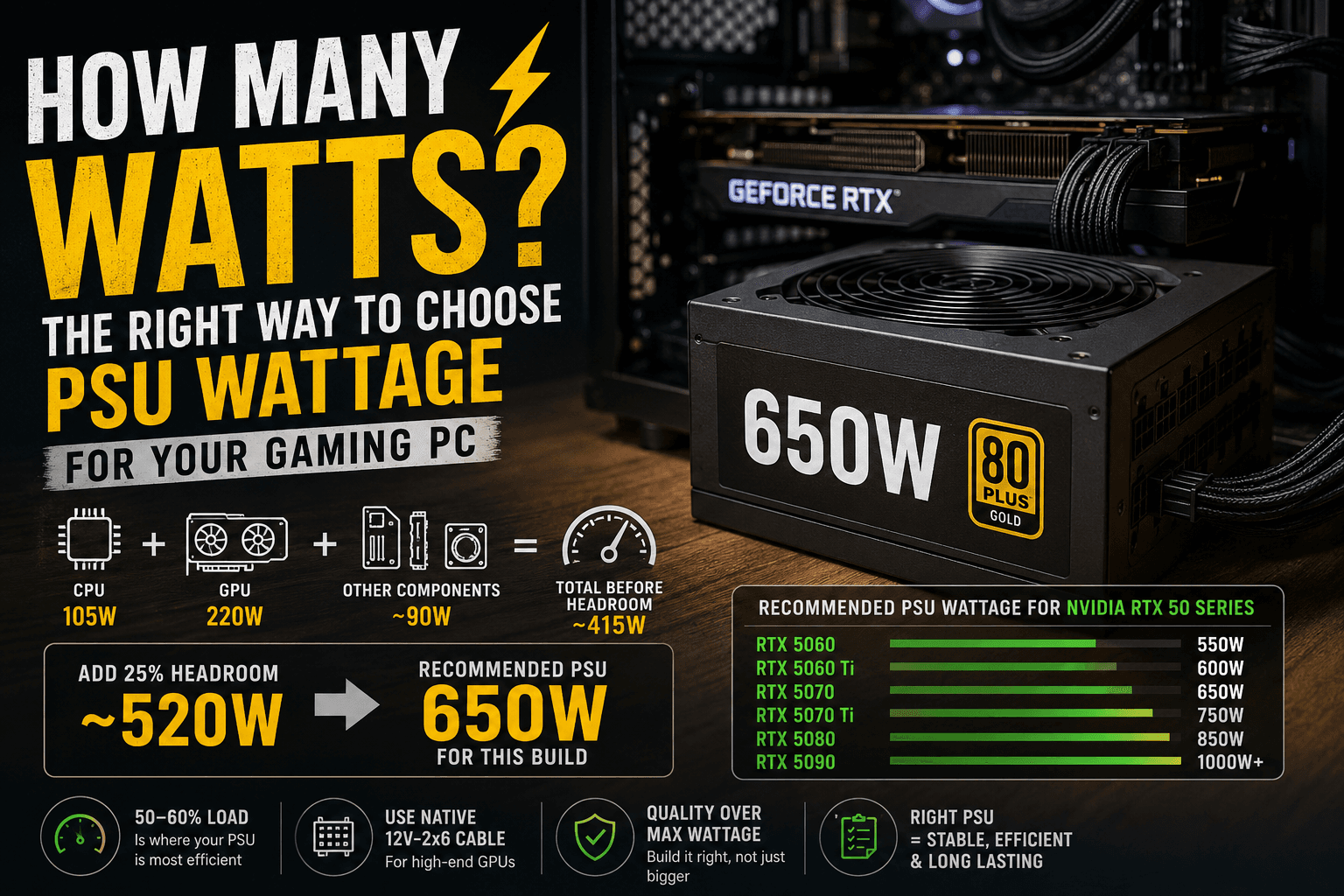
Our practical PSU wattage guide covers how to estimate the power requirements of a complete system rather than relying on a generic wattage number.
A great GPU that your PSU can't reliably support isn't much of an upgrade.
The 5-Minute Decision Rule
If you want the shortest possible answer to should I upgrade CPU or GPU first, use this:
Upgrade the GPU first if:
GPU usage: 95-100%
Lower settings: FPS increases significantly
Resolution: 1440p/4K
Problem: Low graphical performance
VRAM: Frequently near capacity
Upgrade the CPU first if:
GPU usage: Frequently below 90%
CPU: One or more cores/threads heavily loaded
Lower settings: FPS barely changes
Problem: Stutters, poor 1% lows or low maximum FPS
Target: 144Hz/240Hz+ competitive gaming
Upgrade neither yet if:
Your games already hit your monitor's refresh rate, your frame times are stable, and you're happy with the image quality.
This is an underrated answer.
You don't need to upgrade simply because newer hardware exists.
The Best Upgrade Isn't Always the Fastest Component
The biggest mistake I see in PC upgrade advice is treating hardware like a hierarchy:
CPU → GPU → RAM → SSD
Real systems don't work that way.
A $700 GPU isn't automatically a better purchase than a $300 CPU. If your processor is preventing the GPU from reaching its potential, the cheaper CPU upgrade can deliver the bigger improvement.
Likewise, if your CPU is already fast enough but your GPU is struggling at 1440p Ultra, buying an even faster CPU is mostly wasted money.
The goal isn't to build the most expensive PC.
It's to remove the component that's actually holding your gaming experience back.
Final Verdict: Should I Upgrade CPU or GPU First?
If you're still asking should I upgrade CPU or GPU first, don't guess based on age, brand or internet upgrade charts.
Measure your system first.
If your GPU is consistently at or near full utilization and lowering graphics settings improves FPS substantially, upgrade the GPU.
If your GPU has plenty of unused headroom while CPU threads are limiting frame delivery, especially at 1080p and high refresh rates, upgrade the CPU.
And if you're gaming at 4K, the GPU will usually deserve priority unless you've got an unusually severe CPU bottleneck.
The most useful upgrade is the one that removes the limitation you can actually see.
Before spending money, benchmark your current PC, check GPU utilization, look at individual CPU threads, compare 1% lows, and test your normal resolution against a lower one. Fifteen minutes of testing can save you hundreds of dollars on the wrong component.
Want to figure out what's limiting your own PC? Start with our GPU usage troubleshooting guide, then compare your results with the bottleneck guides here on FixPlay.
If you've recently upgraded your CPU or GPU, share your hardware and the games you play. Your experience could help another gamer make a smarter upgrade decision.

Written by
Kashif
Founder & Lead Editor, FixPlay
Kashif is the founder and lead editor at FixPlay, covering PC hardware, console gaming, and breaking industry news since 2021. He builds and benchmarks his own test rigs before writing any hardware guide, and has covered major releases including GTA 6, Elden Ring, and Call of Duty season updates. His GPU and settings guides are based on hands-on testing, not spec-sheet guesses.
View all posts by Kashif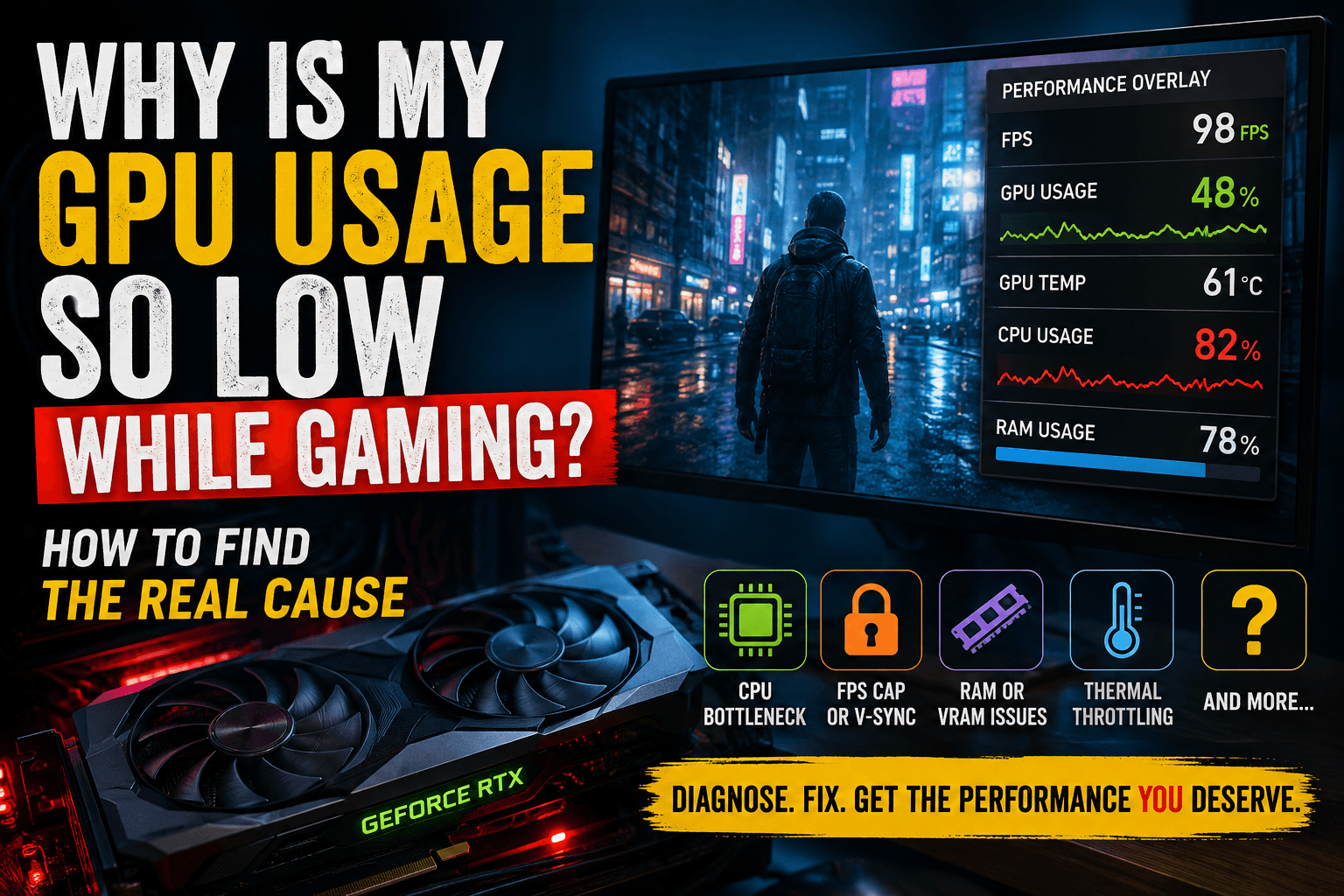
0 Comments
No comments yet - be the first to share your thoughts.